Keyboard Layout Basics
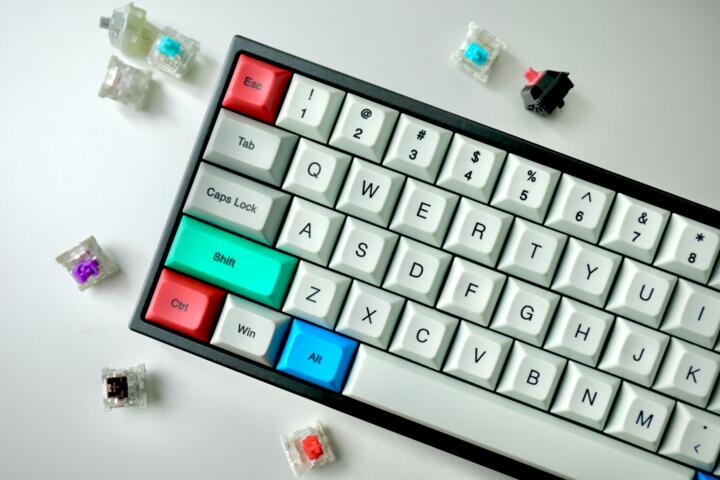
QWERTY is the most common letter layout on modern keyboards, named after the first six letters in the top-left letter row: Q, W, E, R, T, Y. The layout did not originate from a modern “optimal typing” study; it emerged from mechanical typing constraints in the era of typebars and linkages. A widely cited historical reason is that early typewriters jammed when common letter pairs were placed too close together, so designers spaced frequent combinations farther apart.
One measurable clue comes from the physical design of typewriters: typebars had to move and clear each other, which made certain key sequences more likely to collide. In 1936, August Dvorak published a competing layout proposal, and the fact that QWERTY persisted suggests that adoption, retraining cost, and compatibility mattered as much as letter-frequency theory. QWERTY also shaped later standards: many operating systems and keyboard drivers assume QWERTY scancodes map to this arrangement.
Problems And Pain Points
People often assume QWERTY was designed from scratch using modern statistics for letter frequency and hand ergonomics. That assumption leads to disappointment when switching layouts does not produce immediate speed gains, because muscle memory dominates early performance. Another common mistake is treating “layout” as the only variable, even though key feel, key travel, and actuation force change how quickly fingers recover between keystrokes.
QWERTY also interacts with language. English letter frequency differs from French, German, or Spanish, and the presence of accented characters changes which keys you press most. If you type in multiple languages, the layout you choose must match both the letter distribution and the input method editor behavior, otherwise you may see more corrections and backspaces.
Solutions And Tips
Test With Real Text Logs
Use a consistent typing corpus such as 1–3 pages of the same text across sessions, then record words per minute and error counts. This works because it separates layout effects from random practice variation. In practice, you can type the same passage for 5 minutes, then repeat after switching layouts, and compare both speed and the number of corrections. A simple tool is a typing practice site that reports WPM and accuracy, but you should also review your error types manually, since “accuracy” can hide systematic mis-hits.
Track errors, not just WPM.
Expect early results to be noisy. Many people see slower speed for 1–2 weeks after switching, even if the new layout reduces finger travel, because the brain must remap key-to-letter associations. If you see improvements only in autocorrect-heavy tasks, treat the result as “system-assisted,” not layout-driven.
Separate Hardware From Mapping
Check your operating system’s keyboard settings to confirm which layout is active. This works because the physical key positions remain fixed, while the software mapping changes what letters appear. In practice, you can keep a QWERTY physical keyboard but switch to an alternative layout mapping, then observe whether your fingers still land in the same physical locations while the letters change. On Windows, macOS, and Linux, layout switching is usually available under language or keyboard settings; the exact menu path varies by version.
Verify the active layout.
As a side observation, I often see people switch the layout but forget to switch the input method for their second language, which leads to “mystery” characters and extra backspaces. That pattern looks like a layout problem, but it is usually a mapping mismatch.
Use Ergonomic Keying Habits
Adopt a technique that reduces unnecessary finger travel: keep wrists neutral, use home-row anchoring, and avoid striking keys with the whole hand. This works because strain risk correlates with repetitive motion and awkward reach, not only with which letters are common. In practice, aim for consistent finger placement and reduce “hunt-and-peck” behavior during the first days after any layout change. If you use a laptop keyboard, consider an external keyboard with stable key feel, since laptop keys often have different travel and rebound.
Neutral wrists reduce strain.
If you feel tingling or persistent pain, stop and adjust. Layout experiments should not override basic safety; consult a clinician if symptoms persist.
Account For Language And Symbols
Choose a layout that matches the characters you type most, including punctuation and symbols. This works because the “cost” of a keystroke includes the time to locate the key and the likelihood of correction. In practice, if your work includes many parentheses, braces, or quotation marks, test those keys explicitly by typing a short code-like or citation-like sample. For multilingual users, confirm how the layout interacts with dead keys and compose sequences, since those mechanisms can change the effective keystroke count.
Symbols change the workload.
One measurable approach is to count keystrokes per 100 characters in your sample. If a layout reduces letter errors but increases symbol mistakes, your overall correction rate may rise.
Manage Autocorrect And Shortcuts
Temporarily reduce assistance features during testing so you can measure raw typing behavior. This works because predictive text and autocorrect can hide layout-driven errors by correcting them after the fact. In practice, disable autocorrect for the test window, then re-enable it for normal work to see whether the layout still improves outcomes. Many users find that their “accuracy” improves while their correction workload stays the same, which is a sign that the system is doing the repair.
Disable help for tests.
As a mild frustration, some typing reports count corrected words as “correct,” which makes the layout look better than it feels. Manual review of a small sample of mistakes gives a more honest picture.
Case Examples
Office Worker Switching Layouts
An office worker types mostly English emails and uses a QWERTY keyboard daily. They switch to an alternative layout mapping for 7 days, then notice slower speed and more backspaces, even though their typing test site reports higher accuracy. The discrepancy comes from autocorrect repairing many mistakes, so the test underestimates the correction workload. After disabling autocorrect for the test sessions and repeating with the same 5-minute passage, they see that raw errors remain higher, and they decide to revert while keeping the alternative layout for a small set of tasks.
They learned to measure corrections.
Multilingual Student With Symbols
A multilingual student types English and German and writes math-heavy notes with many parentheses and operators. They switch layouts and feel that letter typing improves, but their symbol entry becomes slower because the symbol keys and dead-key behavior differ across layouts and input methods. They run a small test: 200 characters of mixed text plus 50 symbols, then count keystrokes and corrections. The result shows no net gain in total time, so they keep the original layout and instead adjust shortcut mappings for the symbols they use most.
Symbols drove the outcome.
Comparison Table Or Checklist
| Decision Factor | If You Choose QWERTY | If You Switch Layout Mapping | What To Measure |
|---|---|---|---|
| Training time | You keep existing muscle memory | You retrain key-to-letter mapping | WPM after 2 weeks |
| Error visibility | Autocorrect may mask issues | Autocorrect can hide layout effects | Backspaces per 100 chars |
| Language fit | Works with common tutorials and defaults | May mismatch symbols and dead keys | Keystrokes per 200 chars |
| Physical strain | Familiar finger patterns | May increase reach during learning | Pain or tingling during sessions |
Checklist for a low-drama test:
- Pick one keyboard and one OS layout setting, then confirm the active mapping.
- Disable autocorrect for the test window, then type the same 5-minute passage twice.
- Record WPM, accuracy, and backspaces, then review the top 10 error types.
- Repeat after 7 days of practice, then compare against your baseline.
- If pain appears, stop and revert; layout changes should not override safety.
Common Mistakes
People often judge QWERTY logic using only typing speed tests that ignore correction behavior. A layout can raise raw accuracy while increasing the number of corrections, which increases time and strain. Another mistake is switching layouts without changing training habits, so the person keeps hunting for keys and compensates with extra backspaces.
Some users also confuse “keyboard layout” with “keycap legends.” On many keyboards, the printed letters do not match the active software mapping, which leads to confusion and inconsistent results. This mismatch can be especially common after OS updates or when switching between multiple language packs.
Legend mismatch causes confusion.
FAQ
Why Is QWERTY Still Common?
QWERTY remains widespread because most training material, software shortcuts, and user muscle memory assume it. Switching layouts creates retraining cost and compatibility friction, so adoption tends to favor the existing standard.
Did QWERTY Prevent Typewriter Jams?
Historical accounts link QWERTY’s arrangement to reducing mechanical collisions between typebars for frequent letter sequences. The exact engineering rationale varies by typewriter model, and the evidence is historical rather than a single modern experiment.
Does Switching Layout Change Finger Travel?
Finger travel changes only if you physically change key positions. With software mapping changes, your fingers still move to the same physical keys, while the letters produced by those keys change.
Can Autocorrect Hide Layout Problems?
Yes. Autocorrect can convert mistyped words into valid words, so accuracy metrics may improve while backspaces and correction time remain high.
Is A Layout Change A Strain Risk?
It can be during the learning period because searching for keys increases awkward motion and time under tension. If pain or tingling persists, stop and seek medical advice.
Author's Insight
QWERTY’s “logic” reads like a compromise between mechanical constraints, language habits, and adoption inertia. Modern keyboards remove the original typebar collision problem, so the layout’s benefits today come mostly from familiarity and ecosystem compatibility rather than from the original spacing rationale. When people test layouts, the biggest confounders are autocorrect, correction behavior, and the similarity between the old and new mappings. A careful test plan that measures backspaces and error types usually explains the results better than a single WPM number.
Measure corrections, not just speed.
Key Takeaways
- QWERTY’s origin ties to mechanical typewriter constraints, not a modern ergonomic optimization.
- Software layout changes alter letter mapping, while physical finger travel depends on the keyboard hardware.
- Typing tests should track backspaces and error types, since autocorrect can mask layout effects.
- Expect slower performance during retraining; plan 2–4 weeks if you switch.
- Stop if pain appears; layout experiments should not override basic safety.